


Wydawcy
Katalog tematyczny
- Archeologia (109)
- Ekonomia, finanse, business (13704)
- Filozofia (1445)
- Historia (3040)
- Języki i językoznawstwo (2356)
- Lifestyle, hobby i rozrywka (475)
- Medycyna (9704)
- Nauki humanistyczne (4)
- Nauki o Ziemi i środowisku (2638)
- Nauki ścisłe (20412)
- Nauki społeczne (8486)
- Nauki techniczne (13450)
- Prawo (1696)
- Publikacje informacyjne i interdyscyplinarne (1288)
- Religia i wierzenia (917)
- Technika komputerowa (4067)
- Bazy danych (75)
- Bezpieczeństwo komputerowe (454)
- Certyfikacja komputerowa (1)
- Grafika i media cyfrowe (32)
- Informatyka (779)
- Komputery, ogólnie (74)
- Programowanie (351)
- Programy komercyjne (49)
- Sieci komputerowe (350)
- Sprzęt komputerowy (4)
- Systemy operacyjne (32)
- Technika cyfrowa na co dzień (7)
- Zdrowie, relacje międzyludzkie i rozwój osobisty (657)





Informacje szczegółowe o książce
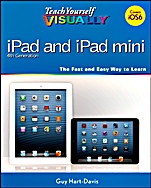
Teach Yourself VISUALLY iPad 4th Generation and iPad mini
ISBN 9781118596326
Autor: Guy Hart–Davis
Wydawca: Wiley
Dostępność: 3-6 tygodni
Cena: 162,75 zł
Przed złożeniem zamówienia prosimy o kontakt mailowy celem potwierdzenia ceny.
ISBN13: |
9781118596326 |
ISBN10: |
1118596323 |
Autor: |
Guy Hart–Davis |
Oprawa: |
Paperback |
Rok Wydania: |
2013-01-25 |
Ilość stron: |
352 |
Wymiary: |
230x189 |
Tematy: |
UH |
Are you a visual learner? Do you prefer instructions that show you how to do something — and skip the long–winded explanations? If so, then this book is for you. Open it up and you′ll find clear, step–by–step screen shots that show you how to tackle more than 140 iPad tasks. Each task–based spread covers a single technique, sure to help you get up and running on your iPad 4th Generation or mini in no time. You′ll learn to: Set up and sync your iPad Handle Siri, dictation, and text Connect via Wi–Fi and Bluetooth Install, organize, and update apps Play music, games, and videos Designed for visual learners Two–page lessons break big topics into bite–sized modules Succinct explanations walk you through step by step Full–color screen shots demonstrate each task Helpful sidebars offer practical tips and tricks
Chapter 1 Getting Started with Your iPad Take a Look at the iPad and iPad mini 4 Unbox Your iPad and Charge It 6 Turn On Your iPad and Meet the Hardware Controls 8 Download, Install, and Set Up iTunes 10 Set Up Your iPad Using iTunes 12 Choose Which Items to Sync 14 Sync Your iPad with iTunes via Wi–Fi 22 Transfer Files to Your iPad Using iTunes File Sharing 24 Set Up Your iPad Using iCloud 26 Explore the iPad’s User Interface and Launch Apps 30 Use Notification Center 32 Chapter 2 Making Your iPad Work Your Way Find the Settings You Need 36 Set Up iCloud 38 Choose Which Apps Can Give Notifications 40 Choose Sounds Settings 42 Set Screen Brightness and Wallpaper Backgrounds 44 Choose Privacy and Location Settings 46 Configure Spotlight Search to Find What You Need 48 Choose Locking and Sleep Settings 50 Set Up and Use Do Not Disturb Mode 52 Secure Your iPad with a Passcode Lock 54 Configure Restrictions and Parental Controls 56 Choose Date, Time, and International Settings 58 Set Up Your Facebook and Twitter Accounts 60 Install a Configuration Profile 62 Use VoiceOver to Identify Items On–Screen 64 Use Other Accessibility Features 66 Accessorize Your iPad 68 Chapter 3 Working with Siri and Text Give Commands with Siri 72 Dictate Text Using Siri 74 Gather and Share Information with Siri 76 Configure Siri to Work Your Way 78 Cut, Copy, and Paste Text 80 Bold, Italicize, and Underline Text 82 Chapter 4 Setting Up Mail, Contacts, and Calendar Set Up Your E–Mail Accounts 86 Connect Your iPad to Exchange Server 88 Set Your Default E–Mail Account and Create Signatures 90 Choose When and How Your iPad Gets Your E–Mail 92 Control How the iPad Displays Your E–Mail 94 Organize Your E–Mail Messages by Threads 96 Configure and Use the VIP Inbox 98 Choose How Your iPad Displays Your Contacts 100 Choose Alert Options for Calendar Events 102 Choose Your Default Calendar and Time Zone 104 Set Your Default Account for Notes 106 Chapter 5 Networking Your iPad Turn Wi–Fi, Bluetooth, and Cellular Access On and Off 110 Connect Bluetooth Devices to Your iPad 112 Control Data Roaming and Cellular Usage 114 Share Your iPad’s Internet Access Using Personal Hotspot 116 Connect to Wi–Fi Networks 120 Log In to Wi–Fi Hotspots 122 Connect to a Network via VPN 124 Send Instant Messages 126 Manage Your Instant Messages 128 Share Your Updates Using Twitter 130 Post Updates on Facebook 132 Chat Face to Face Using FaceTime 134 Chapter 6 Working with Apps Customize the Home Screen 138 Organize Apps with Folders 140 Switch Quickly from One App to Another 142 Explore the App Store 144 Find the Apps You Need on the App Store on Your iPad 146 Find the Apps You Need on the App Store with iTunes 148 Update and Remove Apps 150 Install an App Provided by an Administrator 152 Choose Which Items to Download Automatically 154 Chapter 7 Browsing the Web and Sending E–Mail Browse the Web with Safari 158 Access Websites Quickly with Your Bookmarks 160 Create Bookmarks and Share Web Pages 162 Configure Your Default Search Engine 164 Fill in Forms Quickly with AutoFill 166 Tighten Up Safari’s Security 168 Read Your E–Mail Messages 170 Reply To or Forward an E–Mail Message 172 Organize Your Messages in Mailbox Folders 174 Write and Send E–Mail Messages 176 View Files Attached to Incoming E–Mail Messages 178 Search for E–Mail Messages 180 Chapter 8 Working with Contacts and Calendars Explore Ways of Syncing Your Contacts and Calendars 184 Browse or Search for Contacts 186 Create a New Contact 188 Share Contacts via E–Mail and Instant Messages 190 Browse Existing Events in Your Calendars 192 Create New Events in Your Calendars 194 Work with Calendar Invitations 196 Keep Track of Your Commitments with Reminders 198 Chapter 9 Playing Music, Videos, and Games Play Back Music Using the Music App 204 Play Back Videos Using the Videos App 206 Create a Playlist with the Music App 208 Enable Genius Playlists in iTunes 210 Create a Genius Playlist 212 Use the Shuffle, Repeat, and AirPlay Features 214 Configure iPad Audio Settings 216 Enjoy Podcasts 218 Learn with iTunes U 220 Shop for Music and Videos at the iTunes Store 222 Get Genius Recommendations for Music, Video, TV, and Apps 224 Sign In to Game Center 226 Add and Play Games with Game Center 228 Add Friends and Play Games with Them 230 Chapter 10 Working with Photos and Books Browse Your Photos Using Events, Faces, and Places 234 Rotate Photos 238 Enhance Photos 239 Reduce Red–Eye 240 Crop and Straighten Photos 241 Create Albums 242 Share Your Photos with Your Computers and iOS Devices Using Photo Stream 244 Share Photo Streams with Other People 246 Share Photos via E–Mail and Messaging 248 Play Slide Shows of Your Photos 250 Play Photos from Your iPad on a TV 252 Use Your iPad as a Digital Picture Frame 254 Read Digital Books with iBooks 256 Browse and Buy Digital Books with iBooks 258 Add PDF Files to iBooks and Read Them 260 Chapter 11 Using Maps and Clock Find Your Location with the Maps App 264 Find Directions with the Maps App 266 Explore with 3D Flyovers 268 Use Maps’ Bookmarks and Contacts 270 Share a Location with Others 272 Set Alarms 274 Use the Stopwatch and Timer 276 Set Up Clocks in Multiple Locations 278 Chapter 12 Taking Photos and Videos Take Photos with the Camera App 282 Use the Grid to Compose Photos 284 Take Fun Photos with Photo Booth 286 Capture Video 288 Edit Video with the Trim Feature 290 Share Your Photos and Videos 292 Create Movies Using Apple’s iMovie App 294 Chapter 13 Troubleshooting Your iPad Close an App That Has Stopped Responding 302 Update Your iPad’s Software 304 Extend Your iPad’s Runtime on the Battery 306 Troubleshoot the Inability to Charge the iPad Battery 308 Back Up and Restore Your iPad’s Data and Settings with Your Computer 310 Back Up and Restore Your iPad’s Data and Settings with iCloud 312 Reset Your Network, Dictionary, and Home Screen Settings 314 Restore Your iPad to Factory Settings 316 Troubleshoot Wi–Fi Connections 318 Troubleshoot Connected Devices 320 Troubleshoot Why iTunes May Not See Your iPad 322 Troubleshoot iTunes Sync Problems 324 Locate Your iPad with Find My iPad 326 Index 330
Koszyk
Książek w koszyku: 0 szt.
Wartość zakupów: 0,00 zł
Informacje


Kontakt
Gambit
Centrum Oprogramowania
i Szkoleń Sp. z o.o.
Al. Pokoju 29b/22-24
31-564 Kraków
Siedziba Księgarni
ul. Kordylewskiego 1
31-542 Kraków
+48 12 410 5991
+48 12 410 5987
+48 12 410 5989
Subskrypcje
Administratorem danych osobowych jest firma Gambit COiS Sp. z o.o. Na podany adres będzie wysyłany wyłącznie biuletyn informacyjny.
Autoryzacja płatności

Informacje na temat autoryzacji płatności poprzez PayU.

© Copyright 2012: GAMBIT COiS Sp. z o.o. Wszelkie prawa zastrzeżone.
Projekt i wykonanie: Alchemia Studio Reklamy