


Wydawcy
Katalog tematyczny
- Archeologia (109)
- Ekonomia, finanse, business (13704)
- Filozofia (1445)
- Historia (3040)
- Języki i językoznawstwo (2356)
- Lifestyle, hobby i rozrywka (475)
- Medycyna (9704)
- Nauki humanistyczne (4)
- Nauki o Ziemi i środowisku (2638)
- Nauki ścisłe (20412)
- Nauki społeczne (8486)
- Nauki techniczne (13450)
- Prawo (1696)
- Publikacje informacyjne i interdyscyplinarne (1288)
- Religia i wierzenia (917)
- Technika komputerowa (4067)
- Bazy danych (75)
- Bezpieczeństwo komputerowe (454)
- Certyfikacja komputerowa (1)
- Grafika i media cyfrowe (32)
- Informatyka (779)
- Komputery, ogólnie (74)
- Programowanie (351)
- Programy komercyjne (49)
- Sieci komputerowe (350)
- Sprzęt komputerowy (4)
- Systemy operacyjne (32)
- Technika cyfrowa na co dzień (7)
- Zdrowie, relacje międzyludzkie i rozwój osobisty (657)




Informacje szczegółowe o książce
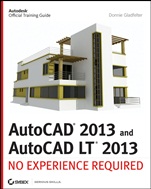
AutoCAD 2013 and AutoCAD LT 2013: No Experience Required
ISBN 9781118281741
Autor: Donnie Gladfelter
Wydawca: Wiley
Dostępność: 3-6 tygodni
Cena: 227,85 zł
Przed złożeniem zamówienia prosimy o kontakt mailowy celem potwierdzenia ceny.
ISBN13: |
9781118281741 |
ISBN10: |
1118281748 |
Autor: |
Donnie Gladfelter |
Oprawa: |
Paperback |
Rok Wydania: |
2012-06-22 |
Ilość stron: |
1104 |
Wymiary: |
230x187 |
Tematy: |
US |
This step-by-step resource quickly helps you become proficient with all the essentials of Autodesk's powerful architectural design software. Gain skills and confidence as you complete each detailed, hands-on exercise and learn how to best use and apply AutoCAD's commands and capabilities. AutoCAD expert and "CAD Geek" blogger Donnie Gladfelter first guides you through the basics, including navigating the interface and creating your first drawings. You'll then move into more advanced features, such as grouping, elevations, and hatches, before diving into the 3D world. All of the drawing files can be downloaded from the book's companion website so you can jump in at any stage. If you want a hands-on, project-based guide that will help you rapidly harness the power of AutoCAD, this is the perfect book. Get familiar with the AutoCAD user interface and immediately start using basic commands Master all the new AutoCAD 2013 features, including Autodesk 360, which are clearly marked Develop strategies that will help you use drawing commands more efficiently Work with AutoCAD's major features, including blocks, hatches, and annotations Organize the various components of a drawing by applying the National CAD Standard Utilize Sheet Set Manager to manage and create document sets Set up a title block and layouts to print your drawing Highly detailed illustrations help you learn real-world industry techniques Learn to create, assemble, and manage a complete set of design documents Apply state-of-the-art modeling tools to create 3D visualizations
Introduction xxvii Chapter 1 Get ting to Know AutoCAD 1 Starting AutoCAD 2 Accessing the Welcome Screen 2 Understanding the Customer Involvement Program 5 Exploring the User Interface 5 Introducing the Application Window 9 Working in the Command–Line Interface 17 Using the Ribbon 18 Displaying the Ribbon Tools 20 Using the Ribbon Tools 22 Using the Application Menu 24 Opening a Drawing with the Application Menu 25 Switching Between Open Drawings 29 Using the Drop–Down Menus 30 Using the Toolbars 31 Saving Workspaces 33 Using the Keyboard 34 Using the Mouse 34 Are You Experienced? 35 Now you can… 35 Chapter 2 Learning Basic Commands to Get Started 37 Using the Line Command 38 Using Coordinates 45 Using Relative Coordinates 48 Using the Direct Distance Method 50 Drawing the Shape 51 Using Relative Cartesian Coordinates 51 Erasing Lines 52 Controlling How the Selection Tools Are Displayed 54 Using Relative Polar Coordinates 55 Using Direct Input 55 Using the Offset Command 57 Using the Fillet Command 60 Completing the Shape 64 Offsetting Lines to Mark an Opening 64 Extending Lines 65 Trimming Lines 67 If You Would Like More Practice… 71 Are You Experienced? 72 Now you can… 72 Chapter 3 Set ting Up a Drawing 73 Setting Up the Drawing Units 74 Setting Up the Drawing Size 79 Using the Grid 79 Setting Up Drawing Limits 83 Drawing with Grid and Snap 87 Taking a Closer Look at Dynamic Input 90 Saving Your Work 93 Saving Drawings to Your Hard Drive or Network Drive 93 Saving Drawings to Autodesk 360 Storage 96 Understanding AutoCAD Units 98 Linear Units 98 Angular Units 99 Are You Experienced? 100 Now you can… 100 Chapter 4 Developing Drawing Strategies: Part 1 101 Laying Out the Walls 102 Creating Polylines from Existing Objects 103 Creating and Editing Polylines 106 Creating the Exterior Wall Lines 109 Creating the Interior Walls 112 Cutting Openings in the Walls 125 Creating Doors 134 Drawing Swinging Doors 135 Copying Objects 144 Mirroring Objects 147 Scaling the Bathroom Door 150 Drawing a Sliding Glass Door 153 Drawing the Bifold Doors 163 If You Would Like More Practice… 170 An Alternative Sliding Glass Door 170 An Addition to the Cabin 170 Three Views of a Block 171 Are You Experienced? 173 Now you can… 173 Chapter 5 Developing Drawing Strategies: Part 2 175 Starting and Running Commands 176 Drawing the Thresholds 178 Drawing the Front Threshold 179 Drawing the Back Threshold 184 Drawing the Decks and Stairs 186 Drawing the Front Deck 186 Drawing the Deck Posts 189 Drawing the Stairs 194 Mirroring the Post and Railing 194 Drawing the Back Deck and Stairs 199 Using Point Filters to Finish the Deck 204 Laying Out the Kitchen 208 Drawing the Counter 209 Drawing the Stove and Refrigerator 213 Completing the Stove with Parametrics 215 Drawing the Kitchen Sink 228 Constructing the Bathroom 231 Setting Running Object Snaps 231 Drawing a Shower Unit 233 Drawing the Bathroom Sink and Mirror 235 Positioning the Toilet and Shelves 239 Drawing the Hot Tub 242 If You Would Like More Practice… 246 Drawing the Cabin Again 246 Drawing Something Else 246 Drawing Some Furniture for the Cabin 246 Drawing a Gasket 247 Drawing a Parking Lot 249 Are You Experienced? 251 Now you can… 251 Chapter 6 Using Layers to Organize Your Drawing 253 Using Layers as an Organizing Tool 254 Setting Up Layers 255 Assigning Linetypes to Layers 269 Assigning Objects to Layers 276 Turning Off and Freezing Layers 291 Drawing the Headers 294 Drawing the Roof 298 Setting a Linetype Scale Factor 304 Drawing the Ridgeline 306 Using the Layer Walk Tool 308 Setting Properties of Layers and Objects 310 Selecting Colors for Layers and Objects 310 Assigning a Color or a Linetype to an Object Instead of a Layer 310 Making a Color or a Linetype Current 311 Using the Action Recorder 312 Creating Layer States 316 If You Would Like More Practice… 320 Experimenting with Linetypes and Linetype Scales 320 Setting Up Layers for Your Own Trade or Profession 321 Are You Experienced? 322 Now you can… 322 Chapter 7 Combining Objects into Blocks 323 Making a Block for a Door 324 Inserting the Door Block 331 Using Dynamic Blocks 337 Understanding and Using Groups 339 Finding Blocks in a Drawing 342 Using Grips to Detect a Block 342 Using the List Command to Detect a Block 344 Using the Properties Palette to Examine a Block 346 Creating a Window Block 347 Inserting the Window Block 352 Rotating a Block during Insertion 353 Using Snap Tracking to Set the Insertion Point 356 Changing a Block’s Scale Factor by Using Object Properties 358 Finishing the Windows 360 Revising a Block 365 Sharing Information between Drawings 367 Dragging and Dropping between Two Open Drawings 368 Copying Objects between Drawings 371 Using the AutoCAD DesignCenter 372 Using Other Ways to Share Information between Drawings 379 If You Would Like More Practice… 387 Are You Experienced? 390 Now you can… 390 Chapter 8 Controlling Text in a Drawing 391 Setting Up Text Styles 392 Determining Text and Drawing Scale 393 Defining a Text Style for View Titles 394 Placing Titles of Views in the Drawing 398 Using Annotative Text 403 Defining an Annotative Text Style 404 Placing Room Labels in the Floor Plan 406 Using Text in a Grid 417 Creating a Title Block and Border 428 Using Multiline Text 445 Finishing the Title Block 446 Using Mtext for General Notes 450 Using the Spell–Check Feature 459 Exploring Other Aspects of Multiline Text 463 If You Would Like More Practice… 468 Are You Experienced? 469 Now you can… 469 Chapter 9 Using Dynamic Blocks and Tables 471 Using Attributes for a Grid 472 Defining Blocks with Attributes 477 Inserting Blocks with Attributes 479 Editing Attribute Text 481 Setting Up Multiple Attributes in a Block 483 Defining a Block with Multiple Attributes 488 Calculating Areas 490 Inserting the Room Information Block 494 Editing Attributes 499 Controlling the Visibility of Attributes 503 Exploring Other Uses for Attributes 507 Creating a Dynamic Block 508 Setting Up Parameters and Actions 509 Fine–Tuning the Dynamic Block with the Properties Palette 513 Inserting a Dynamic Block 516 Creating a Table 522 Defining a Table Style 523 Designing a Table 527 Creating Tables from Attributes 535 Modifying the Table Display 541 If You Would Like More Practice… 543 Are You Experienced? 543 Now you can… 543 Chapter 10 Generating Elevations 545 Drawing the South Elevation 546 Creating the South Elevation 546 Setting Up Lines for the Heights 549 Using Construction Lines to Project Elevation Points 550 Copying Objects by Using Grips 551 Trimming Lines in the Elevation 555 Assigning Elevation Layers 561 Drawing the Decks in Elevation 562 Generating the Other Elevations 577 Making the Opposite Elevation 577 Revising the New South Elevation 581 Making the Front and Back Elevations 587 Considering Drawing Scale Issues 598 Drawing Interior Elevations 599 If You Would Like More Practice… 599 Are You Experienced? 601 Now you can… 601 Chapter 11 Working with Hatches, Gradients, and Tool Palettes 603 Hatching the South Elevation 604 Looking at Hatch Patterns 608 Hatching the Rest of the South Elevation 610 Adding Special Effects 617 Using Hatches in the Floor Plan 623 Creating the User–Defined Hatch Pattern 624 Controlling the Origin of the Hatch Pattern 626 Finishing the Hatches for the Floors 628 Modifying the Shape of Hatch Patterns 631 Creating and Managing Tool Palettes 633 Creating a New Tool Palette 633 Setting Up a Palette for Hatches 636 Creating a Palette for Commands 638 If You Would Like More Practice… 641 Creating the Hatch Patterns for the Other Elevations 641 Creating Your Hatch Palette 642 Are You Experienced? 644 Now you can… 644 Chapter 12 Dimensioning a Drawing 645 Introducing Dimension Styles 646 Preparing for Dimensioning 647 Making a New Dimension Style 649 Setting Up the Symbols And Arrows Tab 651 Making Changes in the Text Tab 652 Working with Settings on the Fit Tab 654 Setting Up the Primary Units Tab (Architectural) 655 Setting Up the Primary Units Tab (Metric) 657 Completing the Dimension Style Setup 658 Exploring the Alternate Units Tab 660 Exploring the Tolerances Tab 663 Placing Dimensions on the Drawing 668 Placing Horizontal Dimensions 668 Using the Dimension Continue Command 671 Using the Dimension Baseline Command 674 Setting Up Vertical Dimensions 675 Finishing the Dimensions 678 Using Other Types of Dimensions 678 Using Radial Dimensions 680 Adding a Diameter Dimension 681 Adding an Arc Length 682 Setting Up Parent and Child Dimensioning Styles 683 Using Aligned and Angular Dimensions 685 Using Ordinate Dimensions 687 Using Leader Lines 691 Modifying Dimensions 697 Editing Dimension Text Content 698 Moving Dimensions 701 Adjusting Space between Stacked Dimensions 703 Using Dimension Overrides 703 Dimensioning Short Distances 706 If You Would Like More Practice… 710 Dimensioning the Garage Addition 710 Dimensioning to a Centerline 710 Completing Further Exercises 714 Are You Experienced? 715 Now you can… 715 Chapter 13 Managing External References 717 Drawing a Site Plan 718 Using Surveyor’s Units 718 Drawing the Driveway 724 Setting Up an External Reference 731 Using the External References Palette 732 Organizing the Drawing Objects 738 Moving and Rotating an Xref 740 Modifying an Xref Drawing 741 Modifying an Xref by Making It the Current Drawing 741 Modifying an Xref from within the Host Drawing 744 Adding an Image to a Drawing 749 Putting Xrefs to Use 753 Exploring Additional Xref Features 754 Setting the Xref Path 754 Binding Xrefs 756 Exploring Further on Your Own 759 If You Would Like More Practice… 760 Building Architectural References 760 Comparing Reference Types 761 Are You Experienced? 761 Now you can… 761 Chapter 14 Using Layouts to Set Up a Print 763 Getting Ready 764 Preparing the Title Block 765 Creating the Title Block Reference 765 Defining the Attributes 769 Making the Sheet Information Block 774 Setting Up a Sheet Template 776 Setting the Layout Parameters 778 Finishing the Sheet Template 783 Creating Your First Plan Sheet 788 Using Sheet Set Manager 791 Creating a New Sheet Set 791 Adding Existing Drawings to a Sheet Set 796 Creating Drawings with Sheet Set Manager 801 Setting Up Layouts 805 Referencing the Model 805 Creating the Paper Space Viewport 808 Setting the Viewport Scale 811 Copying the Layouts 813 Adjusting a Viewport’s Contents 826 Setting the Linetype Scale 827 Managing the Floor Plan Sheet File 828 Managing the Elevations Sheet File 834 Setting Up the Site Plan Sheet 838 Defining a New Viewport Scale 841 Locking and Turning Off Viewports 844 If You Would Like More Practice… 846 Are You Experienced? 848 Now you can… 848 Chapter 15 Printing a Drawing 849 Using the Plot Dialog Box 850 Printer/Plotter 852 Paper Size and Number of Copies 853 Plot Area 853 Plot Scale 860 Plot Offset and Plot Options 861 The Expanded Plot Dialog Box 861 Applying Plot–Style Tables 864 Introducing Plot–Style Table Files 865 Understanding How Plot–Style Table Files Are Organized 866 Assigning Plot–Style Tables to Drawings 869 Printing a Drawing 875 Determining Lineweights for a Drawing 875 Setting Other Properties of Layers 881 Setting Up the Other Parameters for the Print 882 Previewing a Print 884 Viewing Plots in Design Review 886 Printing a Drawing Using Layouts 888 Updating Model File Layer Properties in Sheet Files 888 Plotting a Single Layout 891 Printing a Drawing with Multiple Viewports 893 Printing with a Large–Format Printer 893 Publishing Multiple Layouts 895 Publishing with Sheet Set Manager 897 Going Forward 901 If You Would Like More Practice… 901 Are You Experienced? 902 Now you can… 902 Chapter 16 Creating 3D Geometry 903 Modeling in 3D 904 Setting Up the 3D Workspace and Environment 904 Making the Walls 909 Creating the Door and Window Block–Outs 913 Moving and Rotating in 3D 917 Using the First Right–Hand Rule 918 Cutting the Openings 921 Creating the Floor, Foundation, and Thresholds 923 Creating the Foundation and Supports 925 Building the Windows 927 Navigating with the ViewCube 941 Adding the Sliding Door 943 Building the Decks 945 Putting a Roof on the Cabin 963 Getting Further Directions in 3D 976 Using Other Solid–Modeling Tools 976 Using Mesh–Modeling Tools 980 Using Surface–Modeling Tools 981 If You Would Like More Practice… 983 Are You Experienced? 983 Now you can… 983 Chapter 17 Rendering and Materials 985 Creating Cameras to Reproduce Views 986 Using the Loft Tool 986 Creating the Cameras 991 Creating a Lighting Scheme 994 Creating a Light Source 995 Enabling Shadows 999 Creating the First Render 1000 Controlling the Background of the Rendering 1005 Adding Materials 1008 Adjusting the Material Mapping 1013 Rendering to a File 1018 If You Would Like More Practice… 1021 Are You Experienced? 1022 Now you can… 1022 Index 1023
Donnie Gladfelter is a highly visible and respected thought leader in the CAD community. He is well known for the CAD Geek blog (www.thecadgeek.com), has written many articles for the popular AUGIWorld magazine, and is a popular speaker at Autodesk University and other industry events. He has worked with the development team at Autodesk to help shape future versions of AutoCAD, and the company has featured him in numerous video interviews, including their popular ''Ask the Expert" series. Donnie also helps empower CAD professionals locally and across the world as a Business Development Manager for CADD Microsystems, an Autodesk Platinum Partner and Autodesk's 2010 Reseller of the Year.
Koszyk
Książek w koszyku: 0 szt.
Wartość zakupów: 0,00 zł
Informacje


Kontakt
Gambit
Centrum Oprogramowania
i Szkoleń Sp. z o.o.
Al. Pokoju 29b/22-24
31-564 Kraków
Siedziba Księgarni
ul. Kordylewskiego 1
31-542 Kraków
+48 12 410 5991
+48 12 410 5987
+48 12 410 5989
Subskrypcje
Administratorem danych osobowych jest firma Gambit COiS Sp. z o.o. Na podany adres będzie wysyłany wyłącznie biuletyn informacyjny.
Autoryzacja płatności

Informacje na temat autoryzacji płatności poprzez PayU.

© Copyright 2012: GAMBIT COiS Sp. z o.o. Wszelkie prawa zastrzeżone.
Projekt i wykonanie: Alchemia Studio Reklamy