


Wydawcy
Katalog tematyczny
- Archeologia (109)
- Ekonomia, finanse, business (13704)
- Filozofia (1445)
- Historia (3040)
- Języki i językoznawstwo (2356)
- Lifestyle, hobby i rozrywka (475)
- Medycyna (9704)
- Nauki humanistyczne (4)
- Nauki o Ziemi i środowisku (2638)
- Nauki ścisłe (20412)
- Nauki społeczne (8486)
- Nauki techniczne (13450)
- Prawo (1696)
- Publikacje informacyjne i interdyscyplinarne (1288)
- Religia i wierzenia (917)
- Technika komputerowa (4067)
- Bazy danych (75)
- Bezpieczeństwo komputerowe (454)
- Certyfikacja komputerowa (1)
- Grafika i media cyfrowe (32)
- Informatyka (779)
- Komputery, ogólnie (74)
- Programowanie (351)
- Programy komercyjne (49)
- Sieci komputerowe (350)
- Sprzęt komputerowy (4)
- Systemy operacyjne (32)
- Technika cyfrowa na co dzień (7)
- Zdrowie, relacje międzyludzkie i rozwój osobisty (657)




Informacje szczegółowe o książce
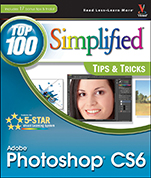
Adobe Photoshop CS6 Top 100 Simplified Tips and Tricks
ISBN 9781118204986
Autor: Lynette Kent
Wydawca: Wiley
Dostępność: 3-6 tygodni
Cena: 140,70 zł
Przed złożeniem zamówienia prosimy o kontakt mailowy celem potwierdzenia ceny.
ISBN13: |
9781118204986 |
ISBN10: |
1118204980 |
Autor: |
Lynette Kent |
Oprawa: |
Paperback |
Rok Wydania: |
2012-05-29 |
Ilość stron: |
288 |
Wymiary: |
253x216 |
Tematy: |
US |
You already know Photoshop CS6 basics. Now you′d like to go beyond with shortcuts, tricks, and tips that let you work smarter and faster. And because you learn more easily when someone shows you how, this is the book for you. Inside, you′ll find clear, illustrated instructions for 100 tasks that reveal cool secrets, teach timesaving tricks, and explain great tips guaranteed to make you more productive with Photoshop CS6.
5–Star Visual Learning System
Minimal text and maximum illustrations
Task–oriented, step–by–step approach
Navigational aids connect instructions to illustrations
Self–contained, two–page lessons
Uniform layout makes it easy to read less, learn more
How easy is it?
Look for these symbols marking the difficulty of each task.
Demonstrates a new spin on a common task
Introduces a new skill or a new task
Combines multiple skills requiring in–depth knowledge
Requires extensive skill and may involve other technologies
Includes 17 bonus tips & tricks!
1 Make Photoshop Work for You
#1 Select the Color Settings for Your Projects 4
#2 Choose Your Preferred Color for the Interface and Screen Modes 6
#3 Set the Preferences for the Way You Work 8
#4 Create Your Own Customized Workspace 10
#5 Change Your Window Views 12
#6 Customize Your View of Bridge 14
#7 Save Time Finding Your Images with the Mini Bridge 16
#8 Add a Keyboard Shortcut for a Favorite Filter 18
#9 Create a Custom Action to Increase Your Efficiency 20
#10 Design a Custom Brush with Your Settings 22
#11 Load Optional Brush Sets for Better Painting 24
#12 Customize a Gradient to Suit Your Design 26
#13 Make Photoshop Take Notes for You 28
#14 Calibrate and Profile Your Monitor for Accurate Editing 30
#15 Turn On the Full Power of Photoshop with a Pen Tablet 32
2 Work with Layers, Selections, and Masks
#16 Edit an Image with Added Layers and Blending Modes 36
#17 Organize the Layers Panel with Names and Colors 38
#18 Use Layer Filters to Quickly Find the Layer You Need 40
#19 Modify a Photo with an On–Image Adjustment Tool 42
#20 Add Layers as Smart Objects for Flexible Changes 44
#21 Apply Filters as Smart Filters for Dynamic Adjustments 46
#22 Make a Selection with the Quick Selection Tool 48
#23 Paint a Quick Mask to Make a Detailed Selection 50
#24 Select Just Skin Tones and Adjust Only the Faces 52
#25 Adjust a Selection with the Refine Edge Tool 56
#26 Blend Two Photos Together with an Automatic Layer Mask 58
#27 Use a Gradient Fill Layer to Improve Your Image 60
#28 Use Auto–Align and Auto–Blend Layers to Combine Photos 62
#29 Create Photographic Designs with Vector Layers 64
3 Straighten, Crop, and Resize
#30 Crop Your Images Using Guides to Improve Composition 68
#31 Easily Level a Crooked Horizon 69
#32 Expand the Canvas with a Reverse Crop 70
#33 Crop Creatively for a Diptych, Triptych, or Quadriptych 72
#34 Change Your Perspective with the Crop Tool 74
#35 Correct Geometric Distortion with the Lens Correction Filter 76
#36 Improve the Field of View with the Adaptive Wide Angle Filter 78
#37 Assemble a Panorama Using Photomerge Automation 80
#38 Resize Your Image with Minimal Visible Loss 82
4 Retouch Portraits
#39 Improve the Skin with the Spot Healing Brush and Layers 86
#40 Reduce Wrinkles for a More Youthful Appearance 90
#41 Soften the Skin Naturally 92
#42 Remove the Glare from Eyeglasses 96
#43 Change Eye Color Digitally 98
#44 Lighten the Irises with a Gradient Layer 100
#45 Brighten the Eyes by Lightening the Whites 102
#46 Add Depth to the Eyes and Lips to Enhance Them 104
#47 Make the Eyes Come Alive with a Digital Catchlight 108
#48 Selectively Sharpen Just the Eyes to Add Focus110
#49 Improve a Smile by Whitening Teeth 112
5 Enhance Colors, Tone, and Sharpness in Photos
#50 Improve a Photo with an Auto Setting 116
#51 Improve an Overexposed Photo in Three Steps 117
#52 Improve Contrast with a Curves Adjustment Layer 118
#53 Remove a Colorcast to Improve the Overall Color 120
#54 Hand–Tint a Black–and–White Photograph 122
#55 Convert a Color Photo to a Black–and–White Photo 124
#56 Add a Touch of Color to a Black–and–White Conversion 126
#57 Improve Exposure with a Dodge and Burn Layer 128
#58 Increase Saturation Subtly Using a Vibrance Adjustment Layer 130
#59 Change the Highlights and Shadows Nondestructively 132
#60 Sharpen the Photo to Correct Digital Softening 134
#61 Apply High Pass Sharpening to Increase Edge Sharpness 136
#62 Alter Depth of Field with a Digital Blur 138
6 Process Photos in Camera Raw
#63 Set the Preferences to Open Any Image in Camera Raw 142
#64 Open Camera Raw Files as Smart Objects Automatically 143
#65 Recover Blown Highlights with Camera Raw 144
#66 Synchronize the White Balance for a Group of Images 146
#67 Visually Adjust the Tone Curve with the Targeted Adjustment Tool 148
#68 Improve a Sky with the Camera Raw Graduated Filter 150
#69 Create a Split Tone in Camera Raw for a Special Effect 152
#70 Add Creative Adjustments with Camera Raw 154
7 Make Magic with Digital Special Effects
#71 Apply a Photo Filter for Dynamic Adjustments 158
#72 Add a Vignette Effect to Focus on the Subject 159
#73 Remove Unwanted Elements with a Content–Aware Brush Stroke 160
#74 Use the Patch Tool to Clone Contents to a New Area 162
#75 Recompose a Photo with the Content–Aware Move Tool 164
#76 Scale an Image without Distorting the Subject 166
#77 Blend Separate Photos for the Best Group Shot 168
#78 Merge Multiple Photos into an Image with High Dynamic Range 170
#79 Use a Puppet Warp to Alter Perspective 172
#80 Apply HDR Toning to Just One Photograph 174
#81 Increase Depth of Field with the Auto Blend Tool 176
#82 Maintain Perspective when Adding Text to an Image 180
#83 Erase Architectural Structures with the Vanishing Point Filter 182
#84 Use the Clone Stamp Tool to Simulate a Reflection 184
#85 Apply a Shape to a Wrinkled Surface with a Displacement Map 186
8 Design with Text Effects
#86 Create a Custom Watermark to Protect Your Images 192
#87 Make Text Wrap around a Subject 194
#88 Warp Text for a Fun Effect 196
#89 Add Perspective to Text and Keep It Sharp 198
#90 Create a Photo–Filled Title 200
#91 Create a Realistic Colored Shadow 202
#92 Design with Text and Graphics 204
#93 Format Text with Your Own Paragraph Style 206
9 Create Digital Artwork from Photographs
#94 Make Any Photo Appear Sketched on the Paper 210
#95 Add Your Own Signature to Any Artwork 212
#96 Simulate a Painted Effect with a Filter 214
#97 Convert a Photo to a High–Contrast Stylized Image 216
#98 Control the Colors to Posterize a Photo 218
#99 Set Up the Brushes and HUD for Your Art Projects 222
#100 Sketch Traditionally with Digital Brushes 224
#101 Create a Digital Pen–and–Ink Drawing 226
#102 Create a Pastel Drawing from a Photograph 228
#103 Change a Photograph into a Pen–and–Colored–Wash Drawing 232
#104 Turn a Photo into a Hand–Painted Oil Painting236
#105 Paint a Digital Watercolor 240
10 Give Your Images a Professional Presentation
#106 Add a Quick Matte to a Photo with a Frame Action 246
#107 Make a Simple Line Frame from within a Photo 247
#108 Apply a Filter to Give a Photo an Artistic Edge 248
#109 Create a Realistic Matte to Frame Your Art 250
#110 Make a Photo Look like a Gallery Print 252
#111 Make a Contact Sheet of Your Photos 256
#112 Create a Slide Show Presentation 258
#113 Create a Web Photo Gallery 260
11 Plug In to Photoshop
#114 Enhance Colors and Light Selectively with Nik Viveza 264
#115 Colorize a Black–and–White Photo with Akvis Coloriage 266
#116 Convert a Photo to a Pencil Sketch with Akvis Sketch 268
#117 Create a Gold Logo with Alien Skin Eye Candy 6 270
Koszyk
Książek w koszyku: 0 szt.
Wartość zakupów: 0,00 zł
Informacje


Kontakt
Gambit
Centrum Oprogramowania
i Szkoleń Sp. z o.o.
Al. Pokoju 29b/22-24
31-564 Kraków
Siedziba Księgarni
ul. Kordylewskiego 1
31-542 Kraków
+48 12 410 5991
+48 12 410 5987
+48 12 410 5989
Subskrypcje
Administratorem danych osobowych jest firma Gambit COiS Sp. z o.o. Na podany adres będzie wysyłany wyłącznie biuletyn informacyjny.
Autoryzacja płatności

Informacje na temat autoryzacji płatności poprzez PayU.

© Copyright 2012: GAMBIT COiS Sp. z o.o. Wszelkie prawa zastrzeżone.
Projekt i wykonanie: Alchemia Studio Reklamy