


Wydawcy
Katalog tematyczny
- Archeologia (109)
- Ekonomia, finanse, business (13704)
- Filozofia (1445)
- Historia (3040)
- Języki i językoznawstwo (2356)
- Lifestyle, hobby i rozrywka (475)
- Medycyna (9704)
- Nauki humanistyczne (4)
- Nauki o Ziemi i środowisku (2638)
- Nauki ścisłe (20412)
- Nauki społeczne (8486)
- Nauki techniczne (13450)
- Prawo (1696)
- Publikacje informacyjne i interdyscyplinarne (1288)
- Religia i wierzenia (917)
- Technika komputerowa (4067)
- Bazy danych (75)
- Bezpieczeństwo komputerowe (454)
- Certyfikacja komputerowa (1)
- Grafika i media cyfrowe (32)
- Informatyka (779)
- Komputery, ogólnie (74)
- Programowanie (351)
- Programy komercyjne (49)
- Sieci komputerowe (350)
- Sprzęt komputerowy (4)
- Systemy operacyjne (32)
- Technika cyfrowa na co dzień (7)
- Zdrowie, relacje międzyludzkie i rozwój osobisty (657)




Informacje szczegółowe o książce
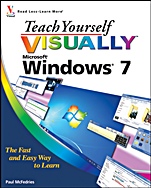
Teach Yourself VISUALLY Windows 7
ISBN 9780470503867
Autor: Paul McFedries
Wydawca: Wiley
Dostępność: 3-6 tygodni
Cena: 162,75 zł
Przed złożeniem zamówienia prosimy o kontakt mailowy celem potwierdzenia ceny.
ISBN13: |
9780470503867 |
ISBN10: |
0470503866 |
Autor: |
Paul McFedries |
Oprawa: |
Paperback |
Rok Wydania: |
2009-09-18 |
Ilość stron: |
352 |
Wymiary: |
235x187 |
Tematy: |
UH |
Read less– learn more
Teach yourself visually Microsoft® Windows® 7
The fast and easy way to learn
Paul McFedries
TeachYourself Visually
Are you a visual learner? Do you prefer instructions that show you how to do something — and skip the long–winded explanations? If so, then this book is for you. Open it up and you′ll find clear, step–by–step screen shots that show you how to tackle more than 155 Windows 7 tasks. Each task–based spread covers a single technique, sure to help you get up and running on Windows 7 in no time.
You′ll learn to:
Navigate the Windows 7 screens
Install and start programs
Download images from a camera
Play music, video files, and DVDs
Configure an Internet connection
Set up security and passwords
Two–page lessons break big topics into bite–sized modules
Succinct explanations walk you through step by step
Full–color screen shots demonstrate each task
Helpful sidebars offer practical tips and tricks
Spis treści:
Chapter 1. Getting Started with Windows 7.
Start Windows 7.
What You Can Do with Windows 7.
The Windows 7 Screen.
Using a Mouse with Windows 7.
Get Help.
Activate Your Copy of Windows 7.
Restart Windows 7.
Shut Down Windows 7.
Chapter 2. Launching and Working with Programs
Install a Program.
Change or Repair a Program Installation.
Start a Program.
Understanding Program Windows.
Using Pull–Down Menus.
Using Toolbars.
Understanding Dialog Box Controls.
Using Dialog Boxes.
Work with Program Windows.
Using Scrollbars.
Switch Between Programs.
Take Advantage of Program Jump Lists.
Uninstall a Program.
Chapter 3. Creating and Editing Documents.
Understanding Documents.
Create a Docume
nt.
Save a Document.
Open a Document.
Make a Copy of a Document.
Edit Document Text.
Change the Text Font.
Find Text.
Replace Text.
Insert Special Symbols.
Print a Document.
Chapter 4. Working with Images.
Open the Pictures Library.
Preview an Image.
View Your Images.
Scan an Image.
Import Images from a Digital Camera.
Repair a Digital Image.
Print an Image.
Create a DVD Slide Show for Your Images.
Chapter 5. Playing Music and Other Media.
Open and Close Windows Media Player.
Navigate the Media Player Window.
Using the Library.
Play an Audio or a Video File.
Adjust the Volume.
Play a Music CD.
Copy Tracks from a Music CD.
Create a Playlist.
Burn Music Files to a CD.
Play a DVD.
Navigate a DVD.
Connect Your PC and Your Home Theater.
What You Can Do with Media Center.
Open and Close Media Center.
Navigate the Media Center Window.
Run a Media Center Slide Show.
Chapter 6. Working with Files.
View Your Files.
Select a File.
Change the File View.
Preview a File.
REWRITING.
Copy a File.
Move a File.
Burn Files to a CD or DVD.
Rename a File.
Create a New File.
Delete a File.
Restore a Deleted File.
Add Tags to a File.
Search for a File.
Extract Files from a Compressed Folder.
Chapter 7. Sharing Your Computer with Others.
Display User Accounts.
Create a User Account.
Switch Between Accounts.
Change a User’s Name.
Change a User’s Picture.
Delete an Account.
Create a Homegroup.
Join a Homegroup.
Share a Document or Folder.
Connect to a Wireless Network.
View Network Resources.
Chapter 8. Using Windows 7’s Notebook Features.
Display Mobility Settings.
Display Power Options.
Customize a Power Plan.
Configure Power Buttons.
Adjust Screen Brightness.
Monitor Battery Power.
Input Text with a Pen.
Synchronize Files B
etween Computers.
Configure Presentation Settings.
Chapter 9. Getting Connected to the Internet.
Understanding Internet Connections.
Get an Internet Connection Started.
Create a Wireless Connection.
Create a Broadband Connection.
Create a Dial–Up Connection.
Connect to the Internet.
Disconnect from the Internet.
Chapter 10. Surfing the World Wide Web.
Understanding the World Wide Web.
Start Internet Explorer.
Navigate Internet Explorer.
Select a Link.
Enter a Web Page Address.
Open a Web Page in a Tab.
Navigate Web Pages.
Navigate with the History List.
Change Your Home Page.
Save Favorite Web Pages.
Search for Sites.
Chapter 11. Working with E–mail, Contacts, and Events.
Install Windows Live Essentials Programs.
Configure an E–mail Account.
Send an E–mail Message.
Add Someone to Your Contacts.
Create a Contact Category.
Select a Contact Address.
Add a File Attachment.
Add a Signature.
Chapter 12. Implementing Security in Windows 7.
Understanding Windows 7 Security.
Check Action Center for Security Problems.
Protect an Account with a Password.
Lock Your Computer.
Set Up Parental Controls.
Delete Your Browsing History.
Browse the Web Privately.
Set the Junk E–mail Protection Level.
Block a Person Who Sends You Junk Mail.
Receive and Read E–mail Messages.
Reply to a Message.
Forward a Message.
Open and Save an Attachment.
Create a Folder for Saving Messages.
Create Rules to Filter Incoming Messages.
Switch to Calendar.
Navigate the Calendar.
Display a Different Date.
Create an Event.
Add a Calendar.
Chapter 13. Customizing Windows 7.
Open the Personalization Window.
Change the Desktop Background.
Set Up a Desktop Slide Show.
Set the Screen Saver.
Change the Windows 7 Color Scheme.
Save a Custom Theme.
Apply a Theme.
Add
a Gadget to the Desktop.
Customize the Start Menu.
Customize the Taskbar.
Chapter 14. Maintaining Windows 7.
Check Hard Drive Free Space.
Delete Unnecessary Files.
Defragment Your Hard Drive on a Schedule.
Check Your Hard Drive for Errors.
Check Your Devices for Errors.
Create a System Restore Point.
Apply a System Restore Point.
Back Up Files.
Restore Backed–Up Files.
Okładka tylna:
Read less– learn more
Teach yourself visually Microsoft® Windows® 7
The fast and easy way to learn
Paul McFedries
TeachYourself Visually
Are you a visual learner? Do you prefer instructions that show you how to do something — and skip the long–winded explanations? If so, then this book is for you. Open it up and you′ll find clear, step–by–step screen shots that show you how to tackle more than 155 Windows 7 tasks. Each task–based spread covers a single technique, sure to help you get up and running on Windows 7 in no time.
You′ll learn to:
Navigate the Windows 7 screens
Install and start programs
Download images from a camera
Play music, video files, and DVDs
Configure an Internet connection
Set up security and passwords
Two–page lessons break big topics into bite–sized modules
Succinct explanations walk you through step by step
Full–color screen shots demonstrate each task
Helpful sidebars offer practical tips and tricks
Koszyk
Książek w koszyku: 0 szt.
Wartość zakupów: 0,00 zł
Informacje


Kontakt
Gambit
Centrum Oprogramowania
i Szkoleń Sp. z o.o.
Al. Pokoju 29b/22-24
31-564 Kraków
Siedziba Księgarni
ul. Kordylewskiego 1
31-542 Kraków
+48 12 410 5991
+48 12 410 5987
+48 12 410 5989
Subskrypcje
Administratorem danych osobowych jest firma Gambit COiS Sp. z o.o. Na podany adres będzie wysyłany wyłącznie biuletyn informacyjny.
Autoryzacja płatności

Informacje na temat autoryzacji płatności poprzez PayU.

© Copyright 2012: GAMBIT COiS Sp. z o.o. Wszelkie prawa zastrzeżone.
Projekt i wykonanie: Alchemia Studio Reklamy